AI photo enhancer

The best moment of the night, ruined by a shaky hand or a dark room.

In short

The AI photo enhancer in Rizz AI Photo has two styles for everyday problem photos: Blur Fix for motion blur, soft focus and shaky shots, and Low Light Boost for dark, grainy indoor and night photos. Each one keeps the person, expression and scene and is ready in about 20 seconds.

An AI photo enhancer rebuilds the sharp, bright version of that photo in seconds, so you can actually post it.

Photo enhancement styles

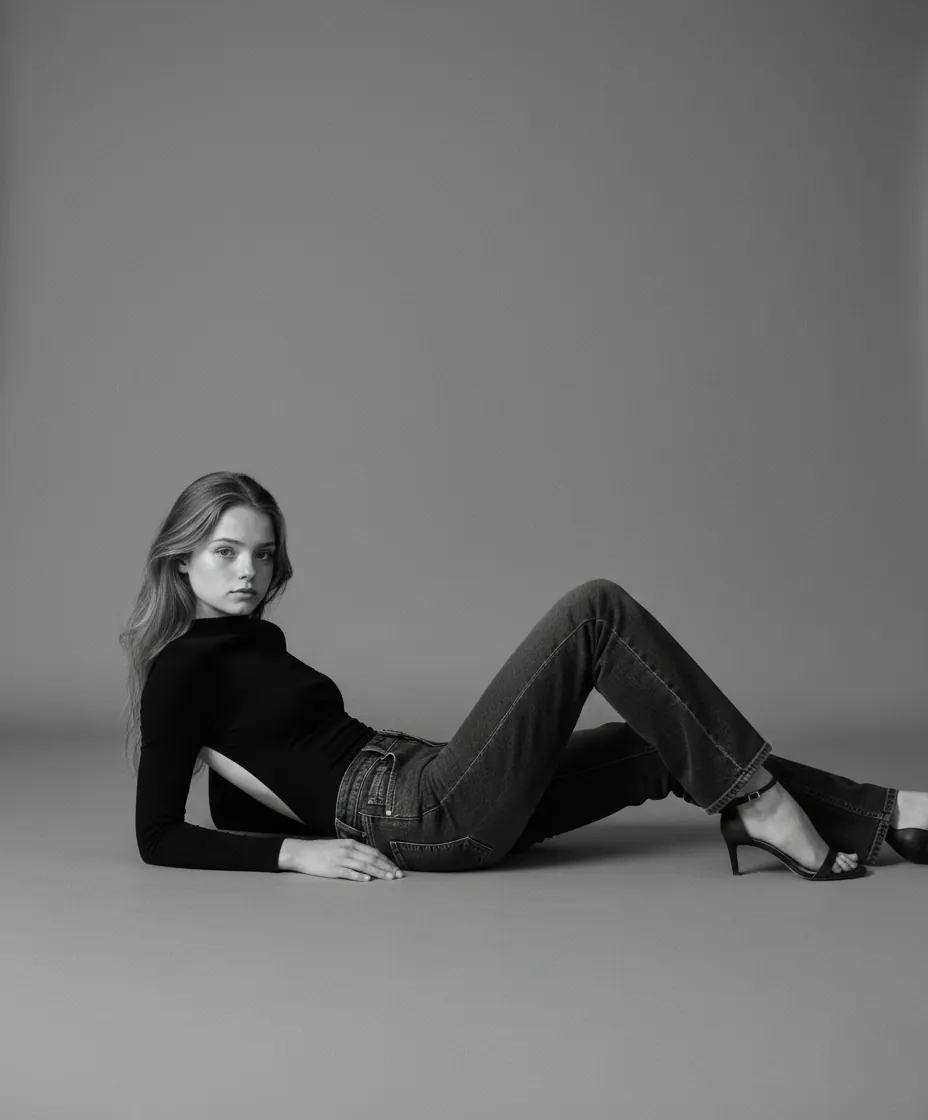
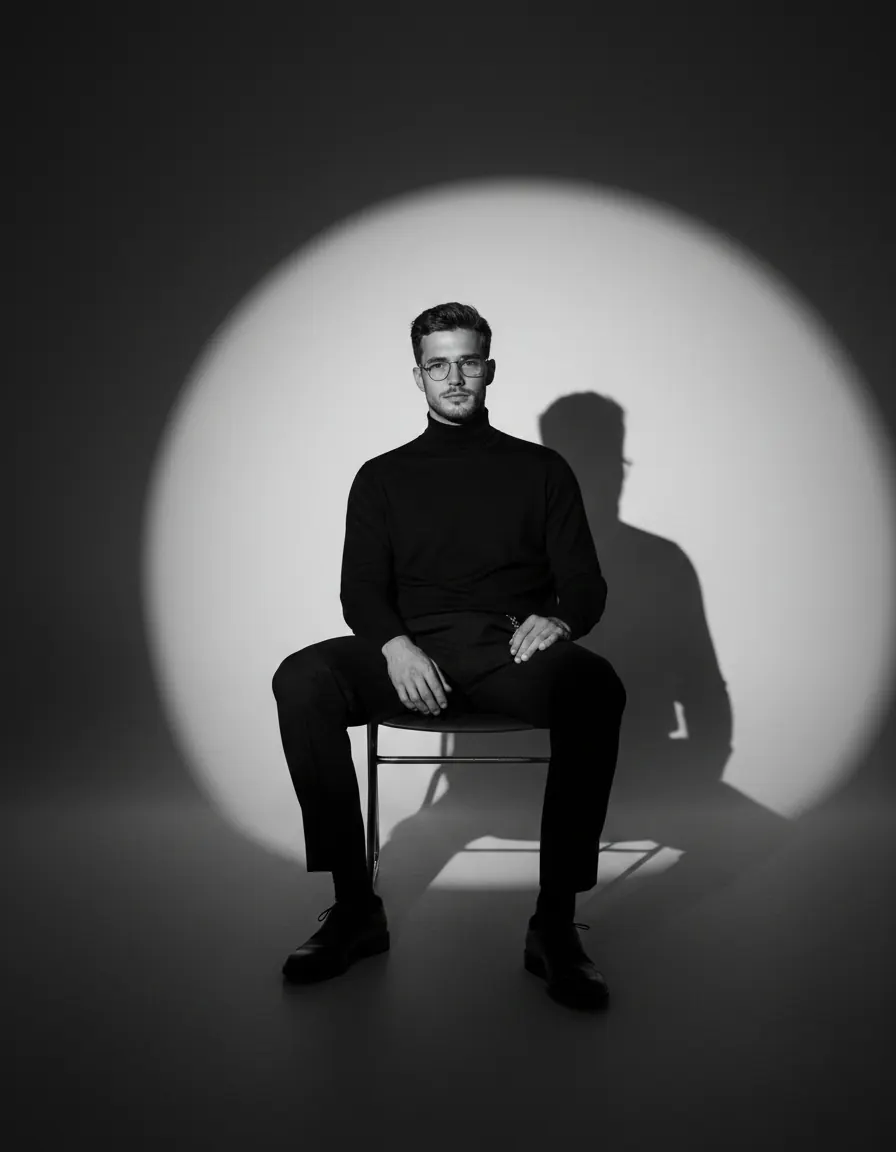
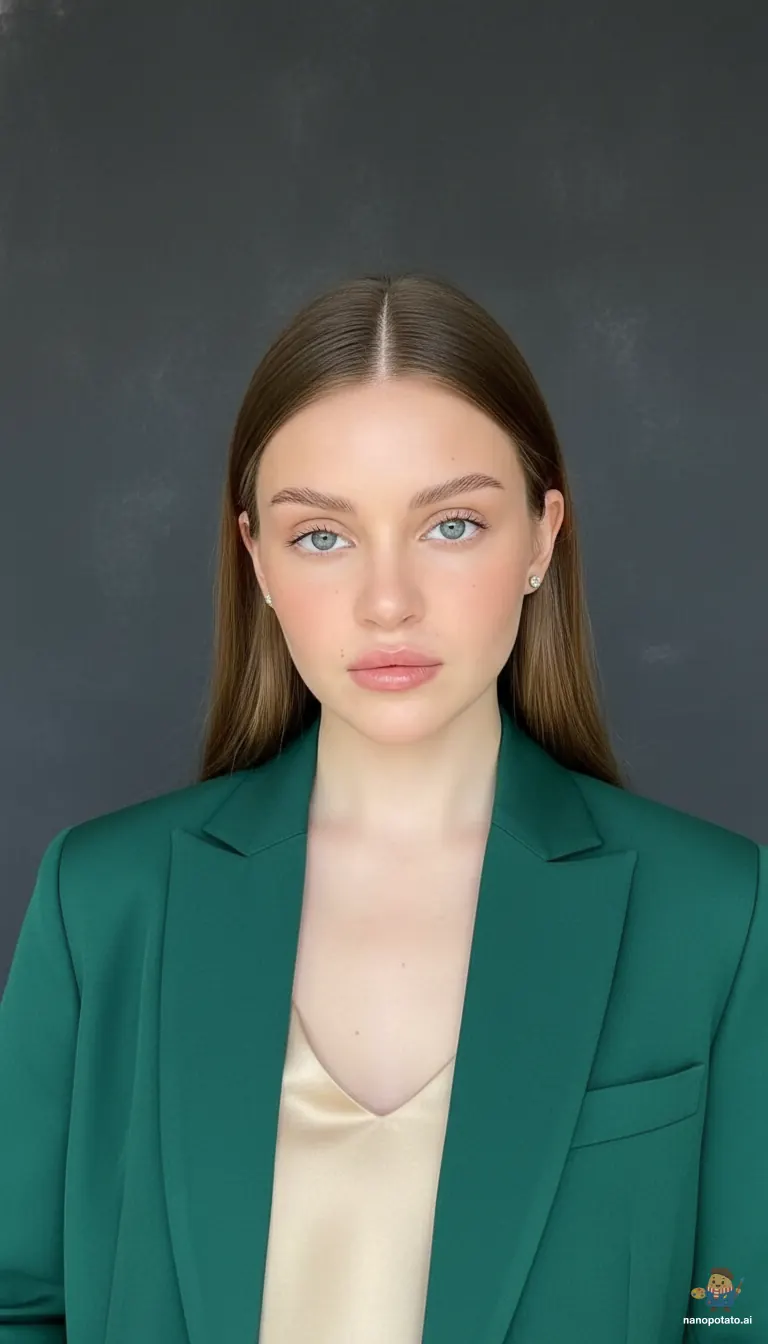
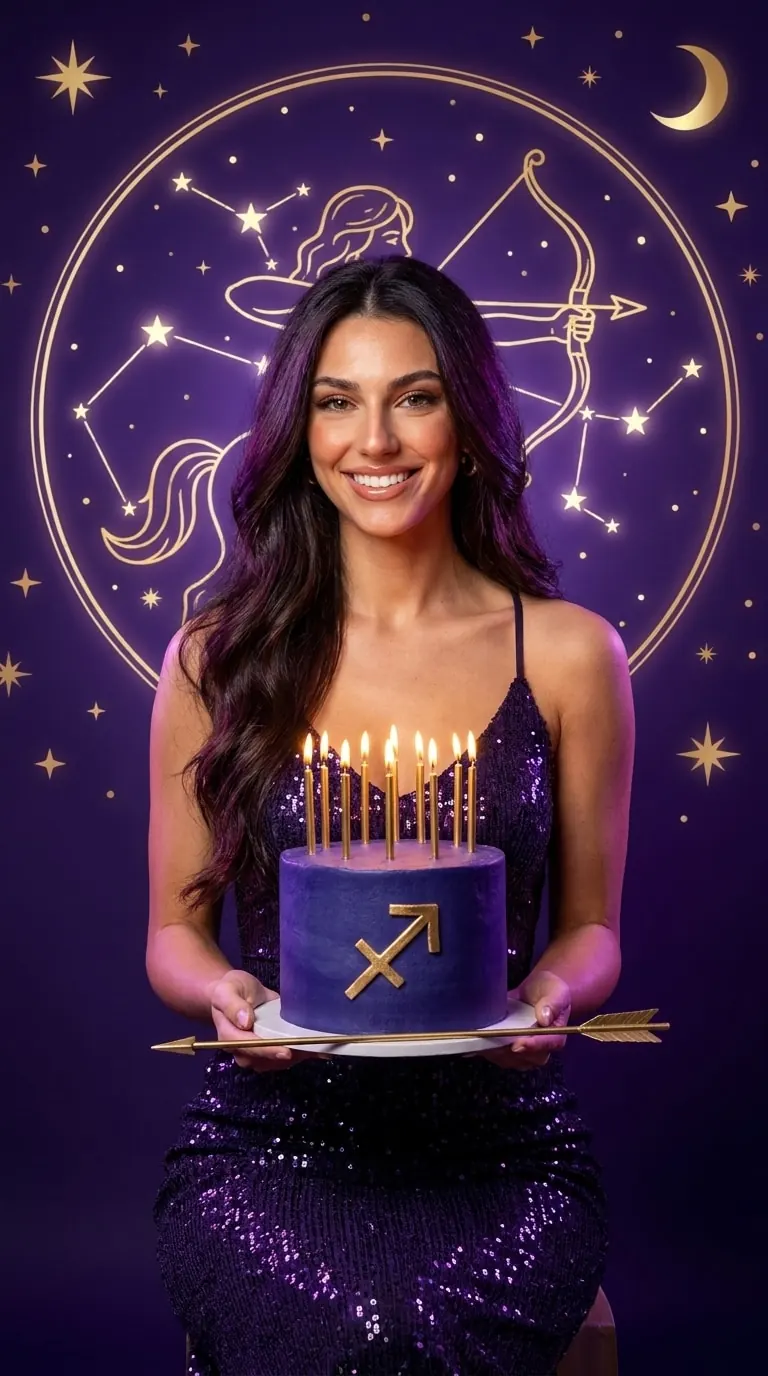
These styles fix the photo you upload instead of placing you in a new scene. Tap any of them to open the app.

Try these styles on your photo. Free to download on iPhone and Android.Try free

What does an AI photo enhancer do?

Classic editing tools can only work with the pixels you already have. Sharpening adds contrast to edges, and brightening a dark photo also brightens its noise. That is why a blurry or dark photo still looks bad after you edit it.

An AI photo enhancer works differently. It recognises what is in the picture, a face, hair, a jacket, a room, and redraws a clean version with real looking detail. For portraits this can turn an unusable photo into one you are happy to post. The trade off is that very fine details are rebuilt rather than recovered, which matters for some photos and not at all for others.

The enhancement styles, explained

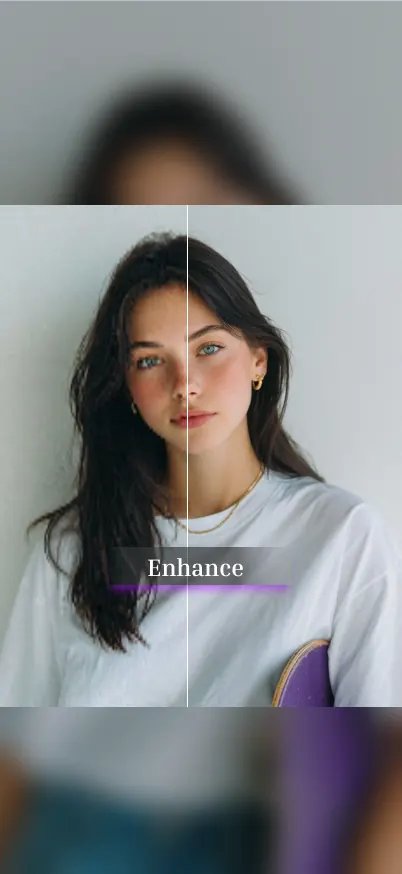
  • Blur Fix: for motion blur, missed focus and general softness. It restores natural sharpness and fine detail, balances exposure, corrects white balance and removes noise and compression artefacts while keeping real skin texture.
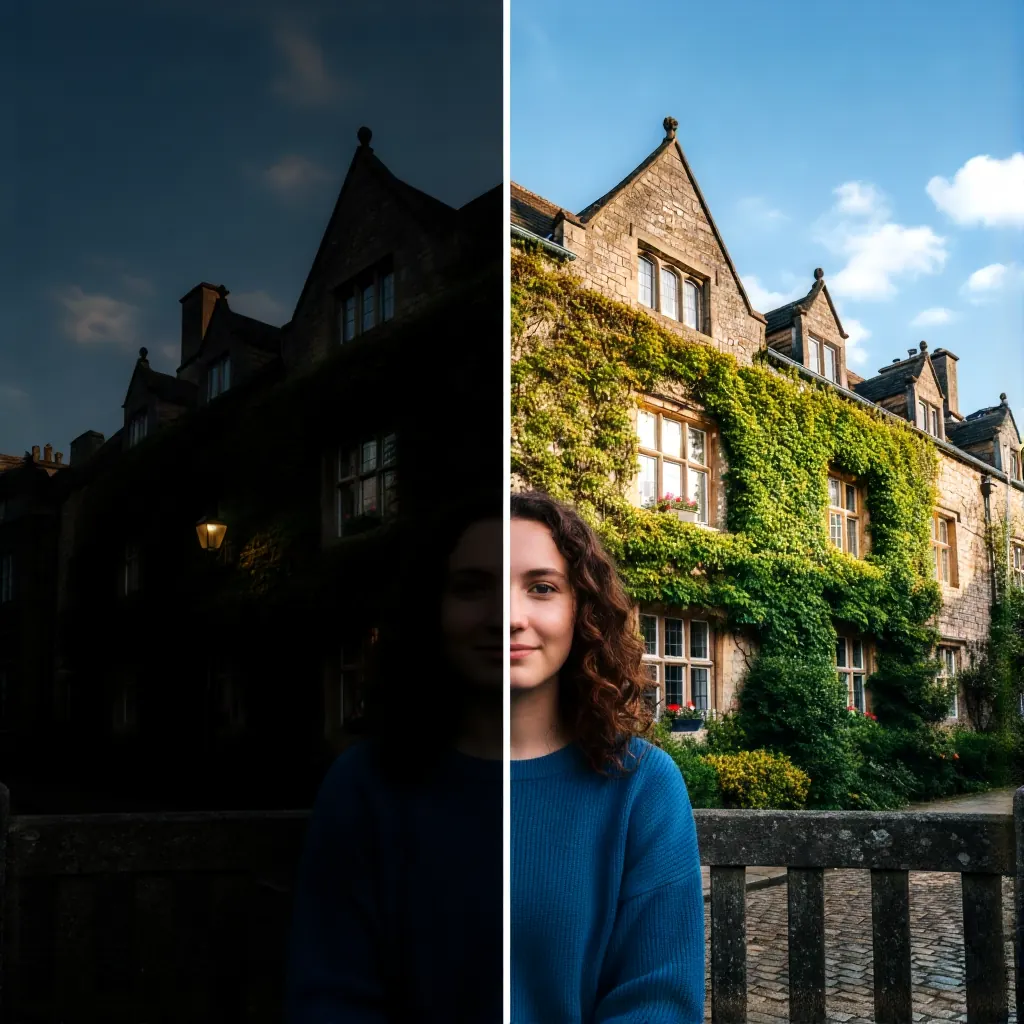
  • Low Light Boost: for photos from restaurants, bars, concerts and late evenings. It lifts brightness without blowing out highlights, keeps shadow detail, removes colour casts and cuts the grain that dark photos pick up.
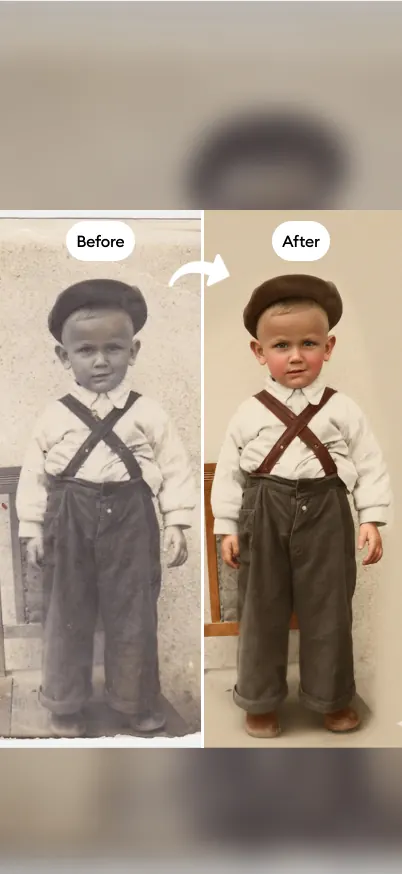
  • Old Photo Restorer: for older looking photos with faded, washed out colours. It brings back natural colour and balance while keeping the people and the scene the same.

Want the opposite? Digicam Flash in the same row turns a clean photo into a deliberately rough 2000s flash photo. More in our AI digicam filter guide.

Rescue that photo. Blur Fix and Low Light Boost are in the Photo Enhancement row, about 20 seconds each.Try free

Which style fixes which problem

  • Shaky hands, a moving subject

    Try
    Blur Fix
    What to expect
    Clean edges and sharper eyes, hair and fabric
  • Focus on the background, not the face

    Try
    Blur Fix
    What to expect
    A sharper face; very soft faces may change slightly
  • Dark restaurant or bar photo

    Try
    Low Light Boost
    What to expect
    Brighter, cleaner skin and natural colour
  • Night photo full of grain

    Try
    Low Light Boost
    What to expect
    Much less noise with detail kept
  • Yellow or orange indoor light

    Try
    Low Light Boost or Blur Fix
    What to expect
    Corrected white balance
  • Faded, washed out colours

    Try
    Old Photo Restorer
    What to expect
    Revived, natural colour and balance
  • Compressed photo from a chat app

    Try
    Blur Fix
    What to expect
    Fewer blocky artefacts and cleaner edges

How to enhance a photo with Rizz AI Photo

  1. 1Download Rizz AI PhotoInstall Rizz AI Photo from the App Store or Google Play and sign in with Apple or Google.
  2. 2Open Photo EnhancementScroll Home to the Photo Enhancement row.
  3. 3Choose the fixTap Blur Fix for a soft or shaky photo, or Low Light Boost for a dark one.
  4. 4Upload the photoPick the original from your camera roll, not a screenshot of it.
  5. 5GenerateTap Generate. The enhanced version is ready in about 20 seconds.
  6. 6Check and saveUse the before and after slider and zoom in on the face. Save the result, or regenerate if a detail changed.

What AI enhancement cannot fix

  • Faces that are a blur of colour. If you cannot recognise the person in the original, the AI cannot either, and the rebuilt face may not match.
  • Tiny faces far away. Enhancement works best when the face is a reasonable size in the frame. Crop closer first.
  • Text, numbers and logos. Fine lettering can be redrawn incorrectly. Do not enhance documents, receipts or number plates.
  • Evidence or records. An enhanced photo is a reconstruction, so never use it as proof of anything.
  • A photo of a screen. Moiré patterns and reflections confuse every enhancer. Use the original file where possible.

When the photo is beyond rescue, a fresh portrait might be the better answer. A clear selfie and a style such as the AI headshot generator or the AI photoshoot generator gives you a brand new, sharp photo.

Free AI photo enhancer prompts for Gemini

Prefer the free route? Upload the photo to the Gemini app and paste one of these prompts. Gemini image generation is free within Google's daily limits.

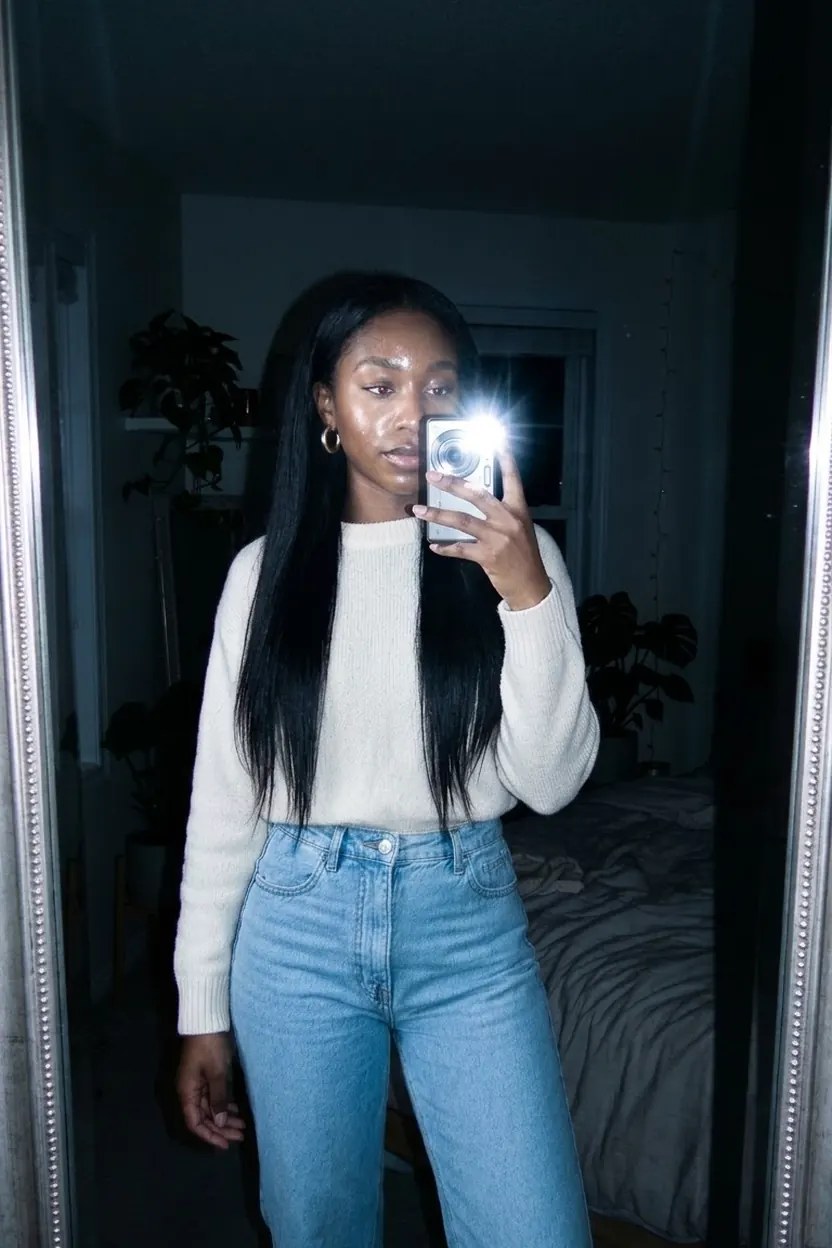
Fix a blurry photo

Fix the motion blur and soft focus in this photo. Keep the face, identity, skin tone and hairline exactly the same. Natural skin texture, no beauty filter. Keep the pose, expression, clothes, background and framing exactly the same. Restore natural sharpness in the eyes, hair and fabric, and remove noise and compression artefacts. Make it look like a sharp photo from a modern camera.

Skip the prompt: try the ready made styles in Rizz AI Photo →
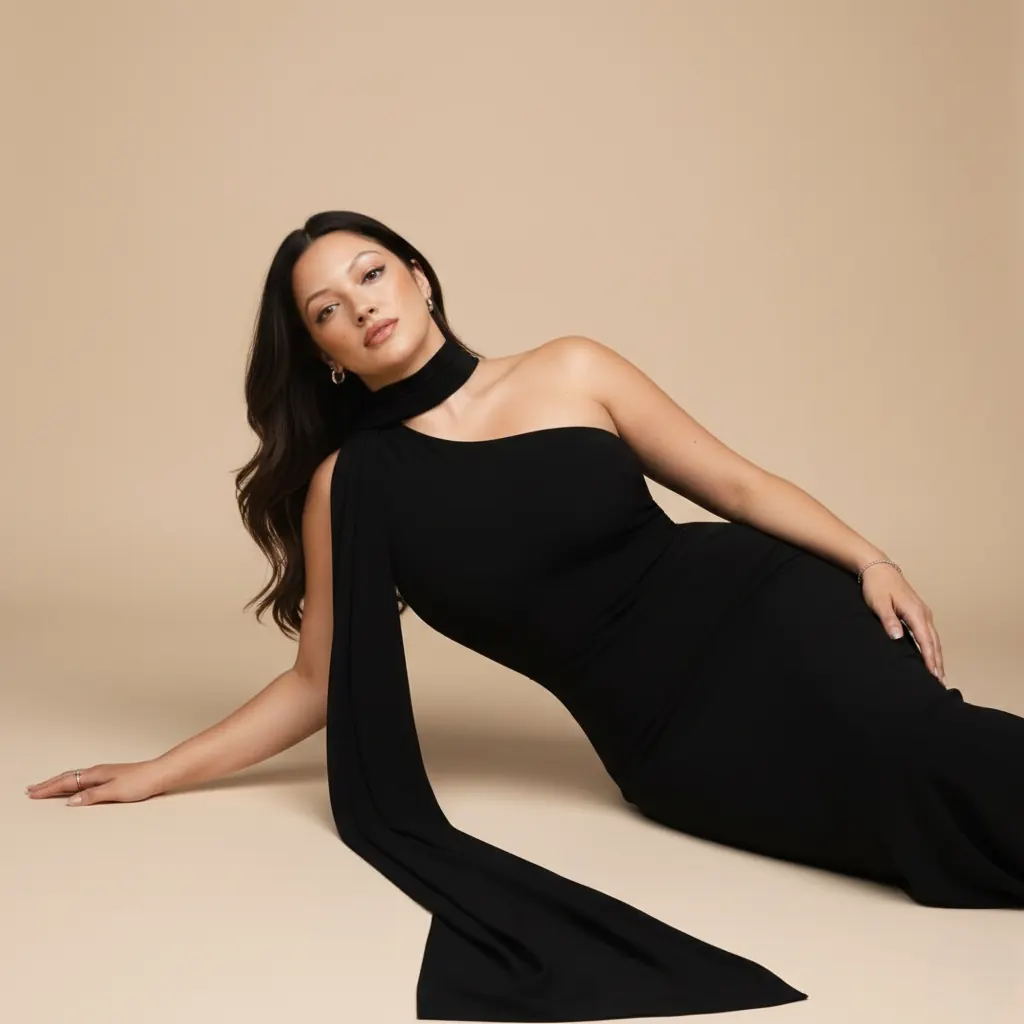
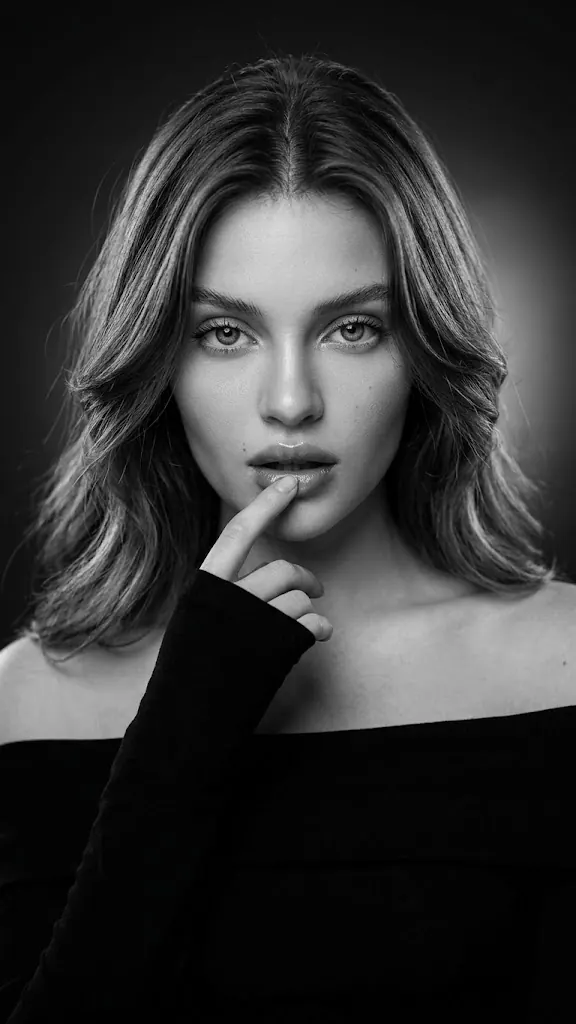
Brighten a dark photo

Enhance this dark low light photo. Keep the face, identity, skin tone and hairline exactly the same. Natural skin texture, no beauty filter. Lift the brightness naturally, keep detail in the shadows and highlights, remove grain and colour casts, and keep the mood of the scene. Everything else stays exactly the same.

Skip the prompt: try the ready made styles in Rizz AI Photo →
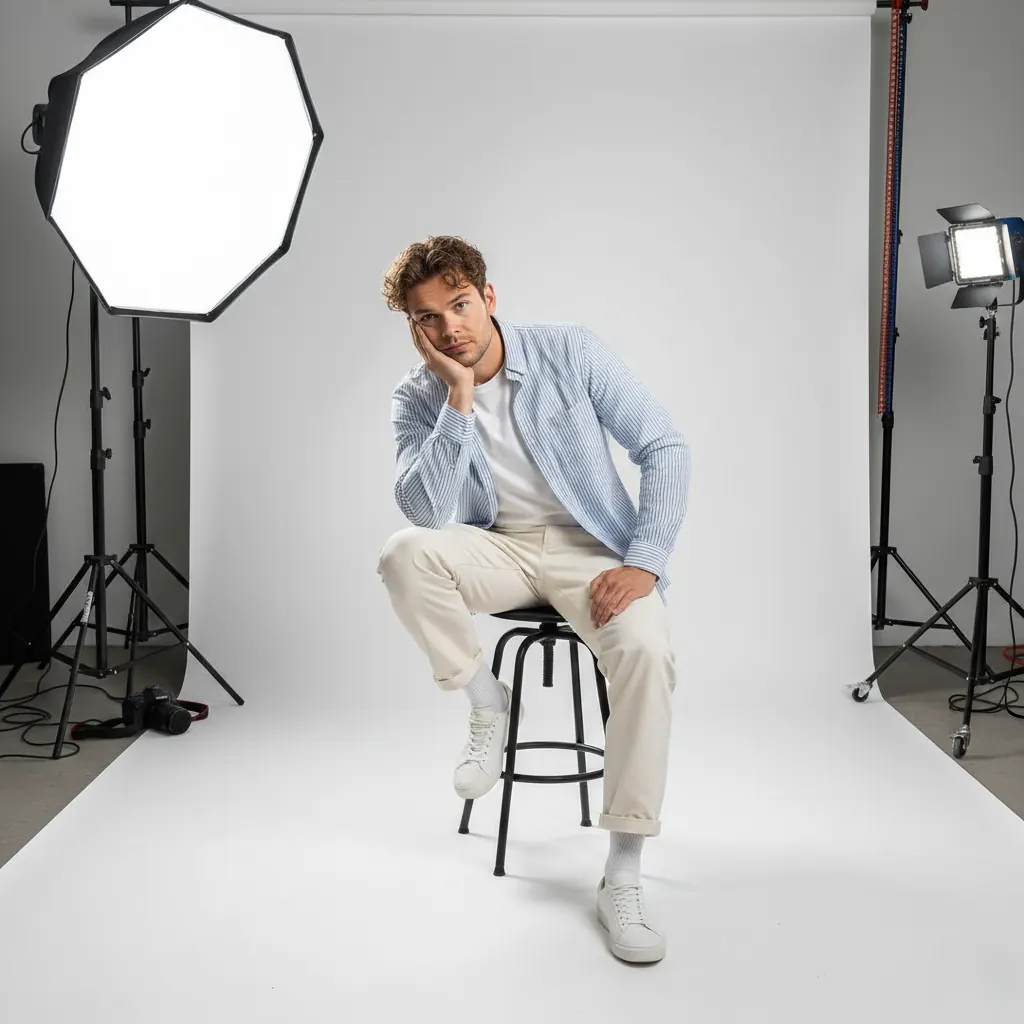
Fix orange indoor light

Correct the white balance in this photo so skin tones look natural instead of orange or yellow. Keep the face, identity, skin tone and hairline exactly the same. Natural skin texture, no beauty filter. Keep everything else, including the scene and the framing, exactly the same.

Skip the prompt: try the ready made styles in Rizz AI Photo →
Clean up a compressed photo

Clean up this compressed, low quality photo. Keep the face, identity, skin tone and hairline exactly the same. Natural skin texture, no beauty filter. Remove blocky artefacts and colour banding, restore clean edges and natural detail, and keep the composition exactly the same.

Skip the prompt: try the ready made styles in Rizz AI Photo →
AI enhancer vs editing apps vs enhancer subscriptions

  • How it works

    Rizz AI Photo Blur Fix and Low Light Boost
    AI rebuilds the photo
    Gemini with a prompt
    AI rebuilds the photo
    Classic editing apps
    Adjusts existing pixels
    Dedicated enhancer apps
    AI face and detail models
  • Effort

    Rizz AI Photo Blur Fix and Low Light Boost
    Upload and tap
    Gemini with a prompt
    Write a prompt
    Classic editing apps
    Sliders and masks
    Dedicated enhancer apps
    Upload and tap
  • Very blurry faces

    Rizz AI Photo Blur Fix and Low Light Boost
    Often rescued
    Gemini with a prompt
    Often rescued
    Classic editing apps
    Rarely fixable
    Dedicated enhancer apps
    Often rescued
  • Risk of changed details

    Rizz AI Photo Blur Fix and Low Light Boost
    Low to medium
    Gemini with a prompt
    Low to medium
    Classic editing apps
    None
    Dedicated enhancer apps
    Low to medium
  • Cost

    Rizz AI Photo Blur Fix and Low Light Boost
    Free to download, credits per image
    Gemini with a prompt
    Free within daily limits
    Classic editing apps
    Free or paid
    Dedicated enhancer apps
    Usually a subscription
  • Bonus

    Rizz AI Photo Blur Fix and Low Light Boost
    Hundreds of photo styles in the same app
    Gemini with a prompt
    General chat assistant
    Classic editing apps
    Full manual control
    Dedicated enhancer apps
    Bulk tools

If you mainly want an enhancer, compare options in our Remini alternatives roundup.

How to avoid blurry and dark photos next time

  • Tap to focus on the face before you shoot.
  • Hold still for a beat after pressing the shutter, especially at night.
  • Use the main camera, not the ultra wide or the front camera, in low light.
  • Turn on night mode and brace your elbows on a table.
  • Move towards the light instead of using flash in a dark room, unless you want the flash look on purpose.
Fix it in 20 seconds. Blur Fix and Low Light Boost, free to download on iPhone and Android.Try free

More styles you might like

FAQ

What is the best AI photo enhancer for portraits?

For people photos, an enhancer that rebuilds detail works far better than classic sharpening. Rizz AI Photo has Blur Fix and Low Light Boost tuned for portraits, and Gemini with a good prompt is a strong free option.

Is there a free AI photo enhancer?

Yes. The Gemini prompts on this page are free within Google's daily limits. Rizz AI Photo is free to download; generating images uses credits from a subscription or a credit pack.

Can AI fix a blurry photo?

Often, yes. Motion blur and soft focus on a recognisable face usually come out much sharper. If the face is unrecognisable in the original, the rebuilt face may not match the person.

Can AI brighten a dark photo without grain?

Yes. Low Light Boost lifts brightness, removes colour casts and reduces the grain that usually appears when you brighten a dark photo.

Will the enhanced photo still look like me?

The styles are set up to keep faces, expressions and the scene. Check the face with the before and after slider and regenerate if anything changed.

Can it enhance photos of text or documents?

No. AI enhancers can redraw lettering incorrectly. Use a scanner app for documents.

Does it work on group photos?

It works best when faces are a reasonable size. For a large group, crop to fewer people first.

Can it fix old photos?

Old Photo Restorer, in the same Photo Enhancement row, is built to revive faded, washed out colours. Results on scans of damaged prints vary, so start from the sharpest copy you have.

Does enhancing change the background?

The styles are set up to keep the scene and framing the same. Small background details may be redrawn, so compare before you share.

How long does it take?

About 20 seconds per photo.

Is an AI enhanced photo real?

It is your real photo with rebuilt detail. That is fine for social posts and memories, but do not use an enhanced photo as evidence or for official documents.

Can I enhance a screenshot?

You can, but the original file always gives a better result than a screenshot or a photo of a screen.

What is the difference between Rizz AI Photo and Remini?

Remini is a dedicated enhancer. Rizz AI Photo includes enhancement styles plus hundreds of photo styles such as headshots and photoshoots. See our Rizz AI Photo vs Remini comparison for details.

Do I need to write prompts in the app?

No. Each enhancement style already contains a tuned prompt. Upload the photo and tap Generate.

Can I enhance photos of other people?

Only enhance photos you took or have permission to use, and ask before posting photos of friends.

Keep reading

By the Rizz AI Photo team · Updated

Skip the prompt.
Get the photo.

Rizz AI Photo runs Nano Banana 2.1 behind ready made styles. Upload a selfie, tap a style, and get your image in seconds. No prompt writing needed.